
sFTP Example for Purchase Invoices
Process flow - How to start setup - General Overview Configuration Options
Description of Scenario
Scenario:
- Billit receives the incoming purchase invoices
- Billit Exports to the sFTP
Config Details
Example of a setup:
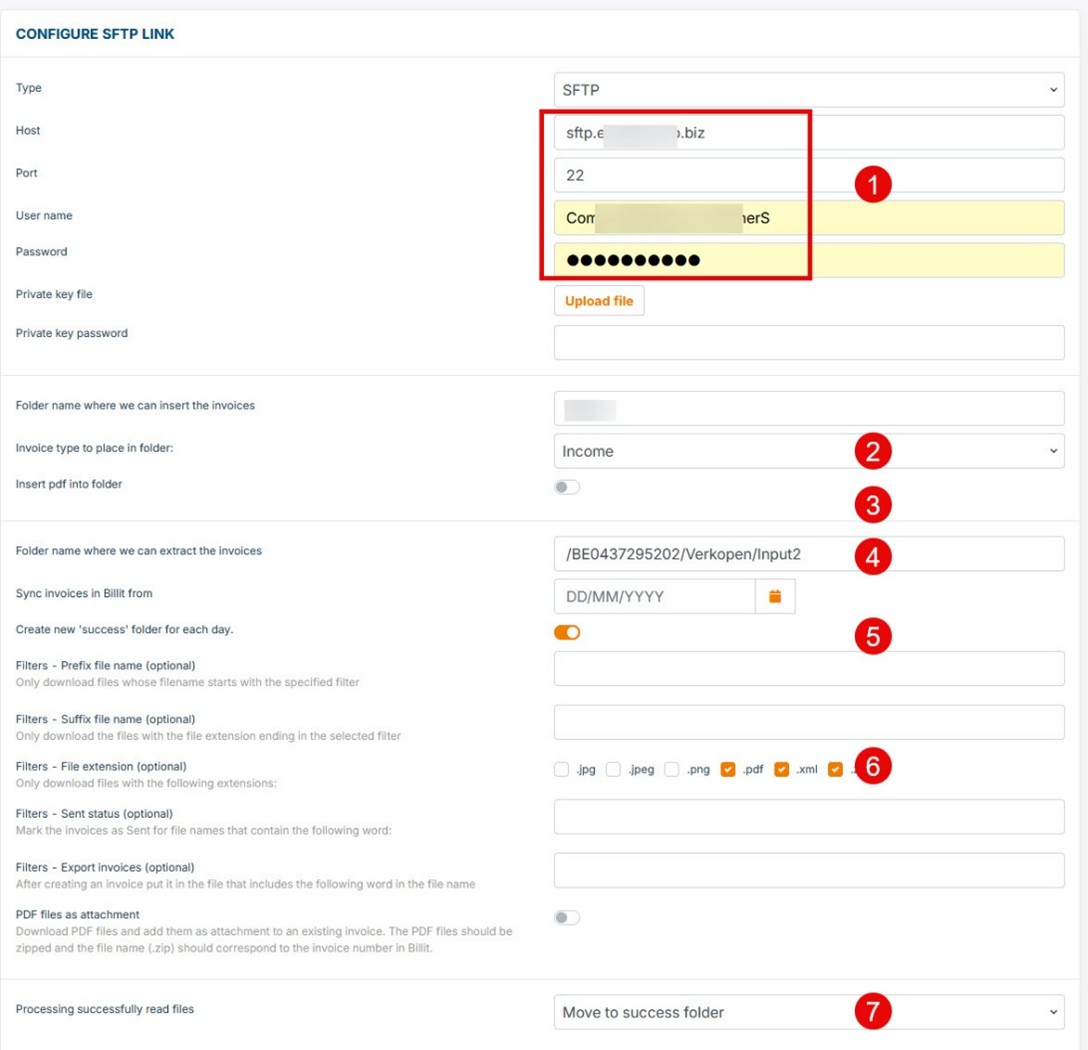
Explanation of the Points with Coloured Digits:
- sFTP Login Data
Provide the required sFTP login credentials for system access. - Income
Income invoices will be processed automatically. - PDF Upload Setting
Indicates whether PDFs should be inserted into the folder.- Yes: for each XML a seperate PDF is expected with the same name als the XML. If the PDF is not present, the UBL will not be uploaded.
- No: only UBL will be inserted, seperate PDF file will not be uploaded.
- In both cases, when PDF is embedded in UBL as encoded object, it will be uploaded.
- Input Folder for Sales Invoices
This is the folder from which Billit will upload XML files for processing. The expected format is UBL; any other format will require additional mapping by Billit. - Daily Success Folder
A new success folder can be created each day. This setting is linked to point 7. If point 7 is configured to "move to success folder," you may choose to create a daily subfolder. This can make monitoring easier and may improve performance. - Allowed File Types
Define the default file types permitted for processing. These settings can be configured to be as strict as required. - Post-Processing Action
Specify what happens after successful processing: either delete the files or store a copy in the success folder.
Remark: PDF Files as Zipped attachment : see documentation about correct use : https://docs.billit.be/docs/sftp-setup
Updated 10 months ago
Did this page help you?